
Using ForeverCast
Quick Setup Guide
The first time you start ForeverCast, a four-step guide walks you through the basics. You can reopen it later with Show Welcome Guide at the bottom of the settings.
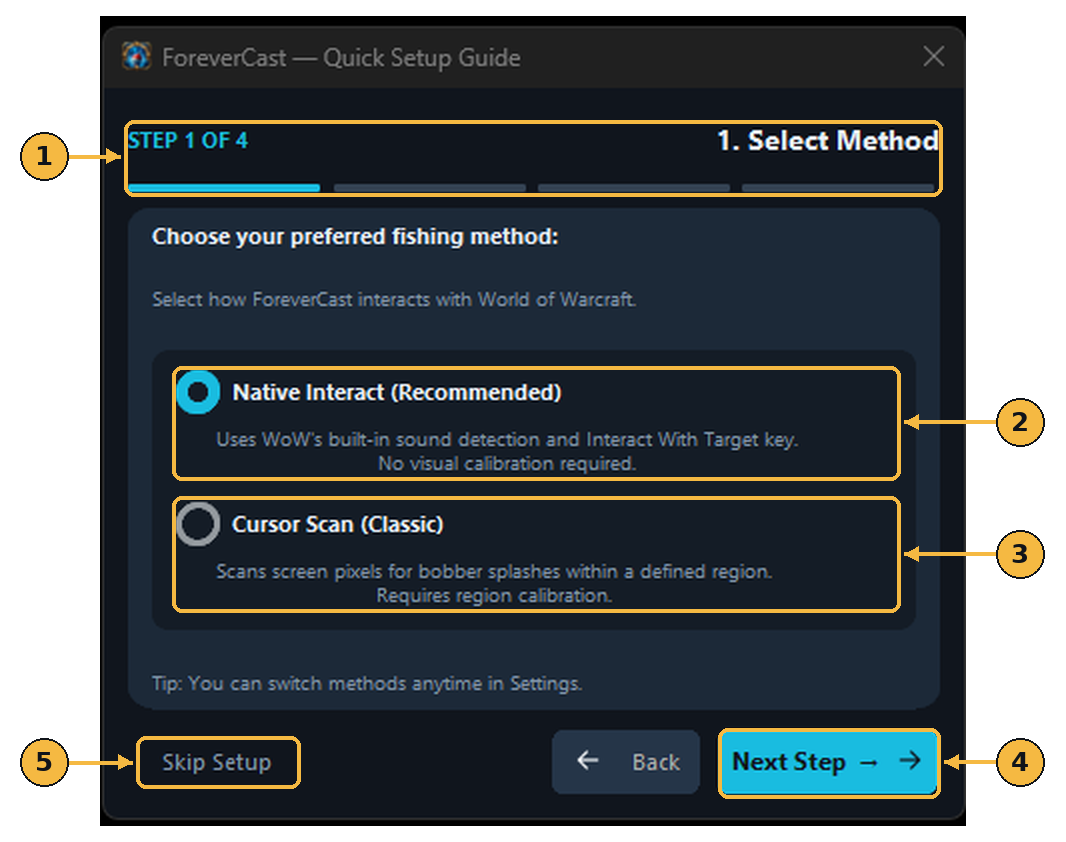
- ProgressShows which of the four steps you're on.
- Native Interact (recommended)Listens for the splash and loots with WoW's Interact With Target key. Nothing to calibrate, works at any camera angle. Pick this unless you have a reason not to.
- Cursor Scan (classic)Looks for the bobber on screen inside an area you draw. Only useful if Interact With Target doesn't work for you.
- Next StepSaves your choice and moves on.
- Skip SetupCloses the guide. You can set everything in Settings instead.
The four steps
- Select MethodNative Interact or Cursor Scan, as above.
- Keybind SetupEnter your Cast Key: the action bar key Fishing is on. See Set up WoW.
- Interact Keybind (Native Interact) or Calibrate Scan (Cursor Scan)With Native Interact, it reminds you to bind Interact With Target in WoW and enter the same key. With Cursor Scan, you draw a box around the water where your bobber lands (below).
- Start FishingShows a summary. Press F6 in game, or the Start button, to begin.
Cursor Scan: drawing the area
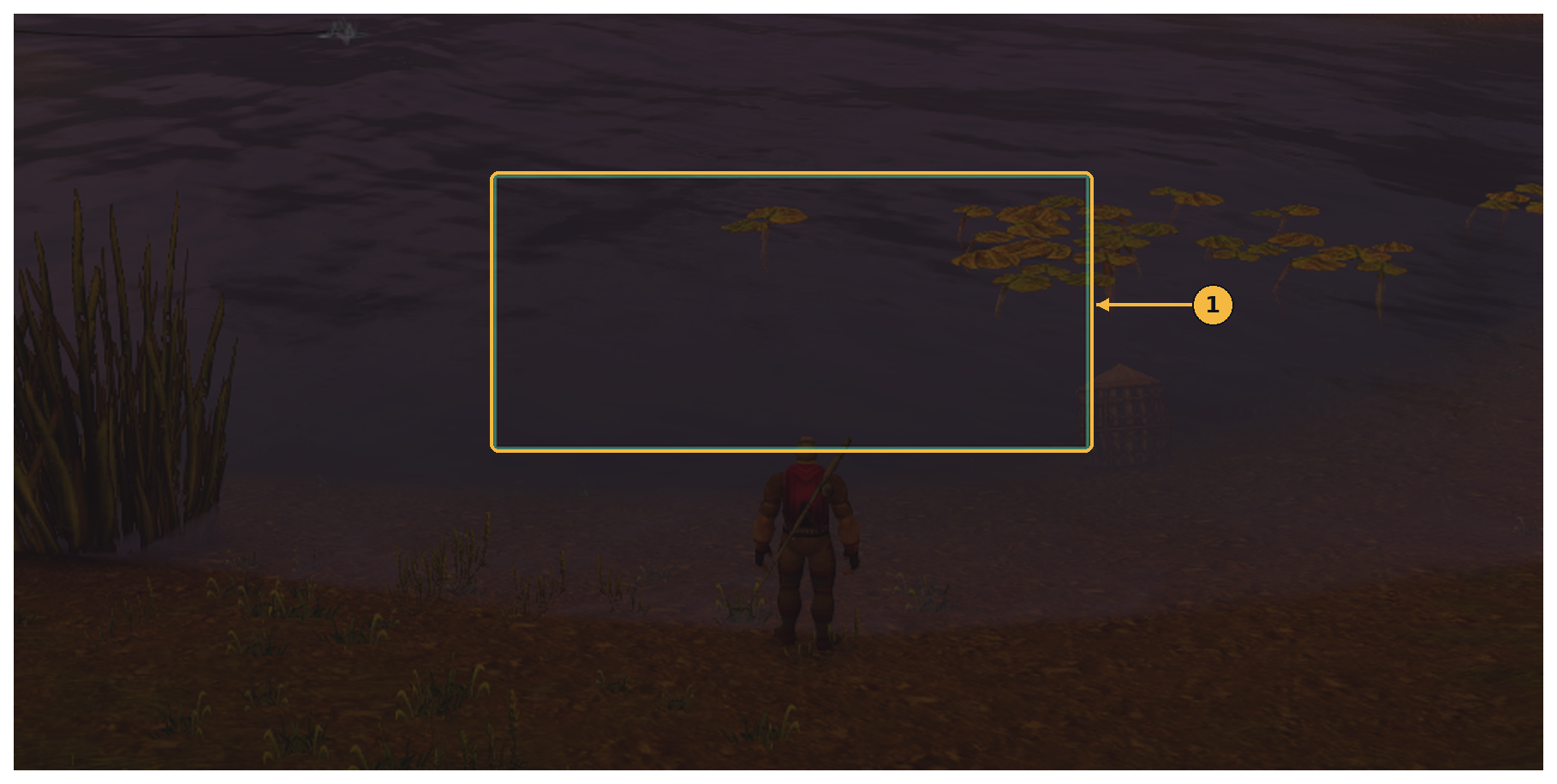
- Scan areaClick Select Scan Area, then drag a box over the water where your bobber usually lands. Keep it tight: leave out your character, the shore and anything that moves. If you move your camera or your character later, draw it again.